
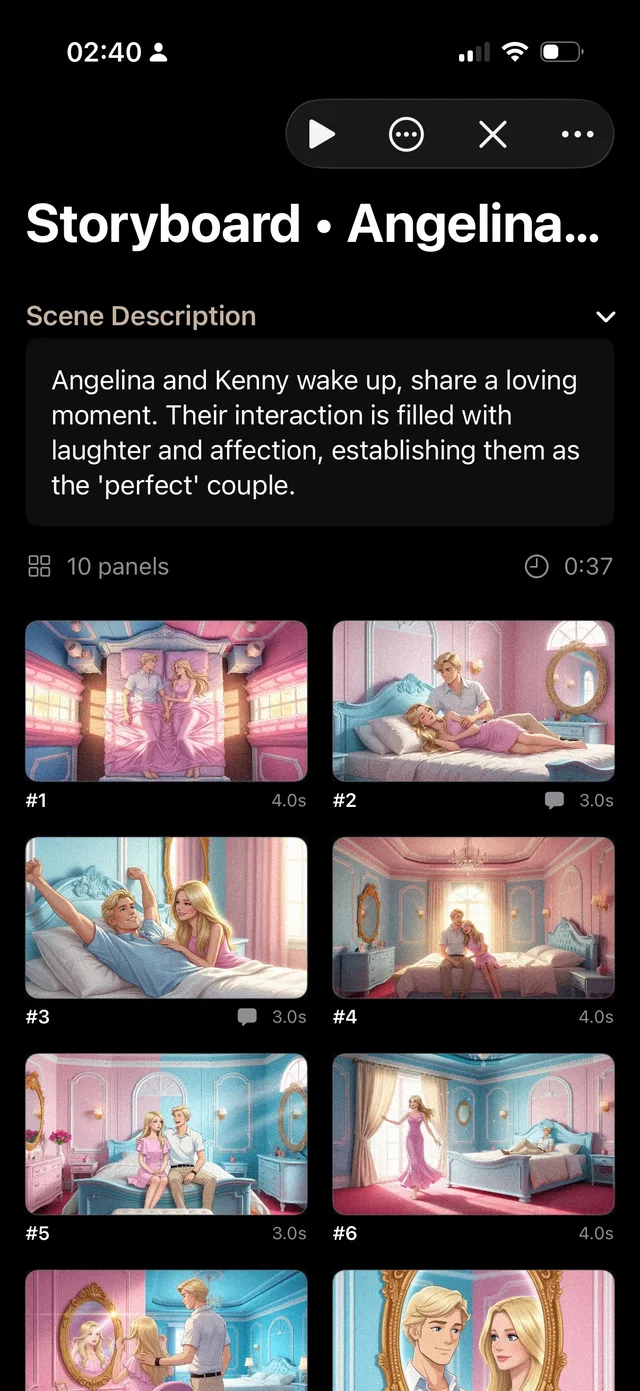
Planning views help you notice what is difficult to see while editing one scene: long gaps, repeated locations, a missing payoff or a sudden change in rhythm.
Read the timeline
Use the scene list and timeline to compare section order, dates, point of view, locations and tension. A timeline is most useful when you have entered only the dates that matter; invented precision can hide a real continuity question.
- Open the project’s Scenes section.
- Arrange scenes in the order the audience should encounter them.
- Add beginning and ending dates for scenes whose chronology matters.
- Scan for impossible travel, overlapping events or a character absent when the story expects them.
- Use the scene detail view to correct the source field, then return to the overview.
Use the storyboard for visual rhythm
The storyboard is available in the Apple app. It turns scenes into visual cards that you can reorder and compare. Use it for shot ideas, composition, visual motifs and the balance between dense and quiet moments.
Keep a card’s visual reference separate from the scene’s narrative facts. The image can suggest a direction; the scene fields explain what actually happens.
Use statistics as questions
Statistics show distribution: scenes per section, word counts, characters, locations and objects. They do not decide whether a distribution is good. Treat an outlier as a question: is this character missing by design, or did a scene lose its point-of-view assignment?
“The overview is a diagnostic surface, not a grading system.”